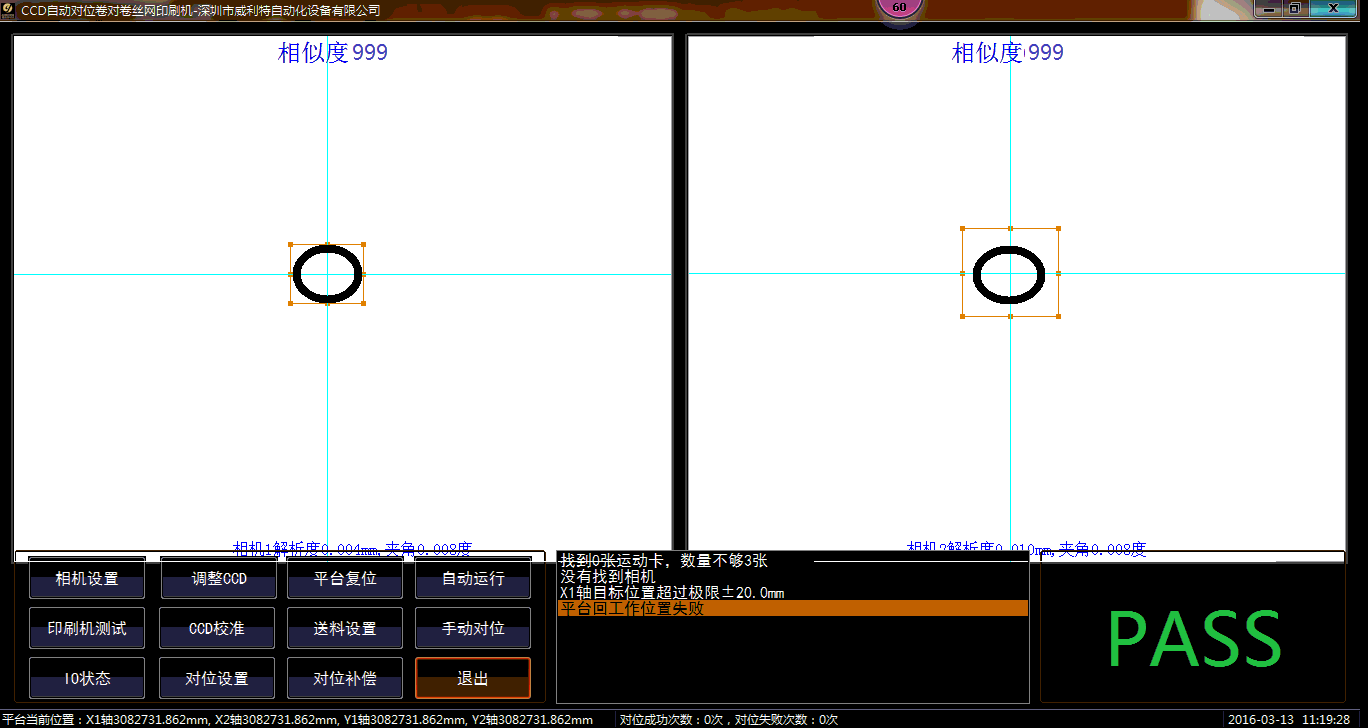
1. Main interface: The main interface of the machine is clear, simple and powerful. The main interface of the machine contains all the functions required by the customer, and the customer can start the operation with one key in the main interface. Easy to use and simple to operate, you can use it skillfully with simple training
2. CCD position adjustment: CCD position adjustment can automatically adjust the field of view of the CCD according to the position of the Mark point on the customer material. The adjustment range of the CCD: 330mm (horizontal ±100mm, vertical ±25mm), the Mark point on the customer material only needs to be here Within range. Then you can automatically adjust the position of the MARK point.
3. Alignment setting: The alignment setting includes the core parameter settings of the internal parameters of the machine. In the alignment setting, control options are given to adapt to various printing phenomena such as material shrinkage and screen expansion. Customers can choose the printing accuracy according to the product requirements , The software gives 6 kinds of printing accuracy for selection: including X error equalization, Y error equalization, +X direction as reference, -X direction as reference, +Y direction as reference, -Y direction as reference:
4. Alignment compensation: Alignment compensation is used to detect poor printing during the automatic printing process. When the image or text of the material expands or the material shrinks during the printing process, the employee can adjust the alignment compensation as required to ensure the printing accuracy of the material . Alignment compensation provides 6 automatic adjustment directions including +X, -X, +Y, -Y, clockwise and counterclockwise rotation.
5. Other functions: The main interface of the software includes the total printing quantity and the alignment time of a single piece. The customer can set the automatic alarm for the printing quantity in the main interface, and can also see all the printing steps of the printing process at the bottom of the main interface. The software displays PASS every time the printing is successful.